> For the complete documentation index, see [llms.txt](https://docs.responso.com/responso-doc/llms.txt). Markdown versions of documentation pages are available by appending `.md` to page URLs; this page is available as [Markdown](https://docs.responso.com/responso-doc/en/functions/ai-assistant/adding-resources-to-the-ai-assistant.md).
# Adding Resources to the AI Assistant
Go to *Settings > AI Settings > AI Assistant*, or click [here](https://app.responso.com/settings/ai/chatbot). This is where you "feed" your AI Assistant information. The types of resources you can provide are divided into two categories – knowledge base and catalog.
### **Resource Type: Knowledge Base**
A **knowledge base** contains information about how your store operates, such as details on shipping times and methods, store location, and so on.
#### **Option 1: Upload a CSV File**
The easiest way to add a knowledge base is to upload a CSV file. It must be prepared according to the following template:
Column A – questions, Column B – answers
There is no row limit, but the maximum file size is 3MB and the maximum response length is 2,000 characters including spaces.
#### **Option 2: Adding Questions and Answers**
To add a knowledge base to the AI Assistant, click the Add Knowledge Base button. The knowledge base is built based on your answers to the following questions:
1. **What do you want do name the resource?** – Give it a name that helps you identify its content; for example, you can use the name of the store it pertains to. You'll use this resource name in automated actions involving the AI Assistant.
2. **What is the shipping time?**
3. **Do you accept in-store pickup?**
4. **What are the shipping methods?**
5. **Do you give a discount?**
6. **Where is the store?**
7. **New products only?**
8. **Only original products?**
9. **Do products have a warranty?**
10. **Do you issue an invoice?**
Answering the predefined questions (except for the first question about the resource name) isn't mandatory, but not answering them might hinder the AI Assistant's performance.
In addition to the predefined questions, you can choose to add your own custom questions to the knowledge base in the last step of the form.
The number of questions you can add is unlimited.
After adding all questions to the knowledge base, click the **Finish** button.
### Resource Type: Offers
The catalog contains information about the products you offer, pulled directly from your integrated account. Currently, the catalog can be imported from integrations including Allegro, IdoSell, WooCommerce, and PrestaShop.
{% hint style="info" %}
Note – For catalog importing from PrestaShop to work, the following API key permissions are required:
* customers
* order\_states
* orders
* currencies
* configurations
* product\_feature\_values
* product\_features
* product\_option\_values
* product\_options
* products
{% endhint %}
To add an offer to the AI Assistant, click the *Add an offer* button, then follow these two steps:
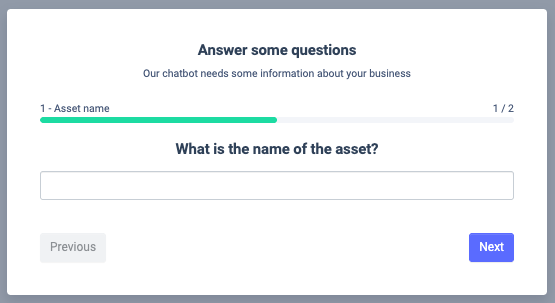
1. **Name the asset** – Give it a name that helps you identify its content; for example, you can use the name of the Allegro account it pertains to. You'll use this resource name in automated actions involving the AI Assistant.
2. **Select a catalog source** – Choose either "Allegro Account" or "Other Integrations", then select the specific integration or Allegro account from which product information should be pulled for this resource.
After selecting the appropriate account, click the *Finish* button.
### Resource Status
The **Status** column shows the processing status of a given resource.
After adding a resource, you'll see **a blue *****Processing***** status** next to its name on the list. The AI Assistant needs a moment to "learn" the added information. The processing time depends on the amount of information added and can take up to several hours.
When information processing is complete, **a green *****Success***** status** will appear next to the resource name. This means you can now use this resource in an automated action with the AI Assistant.
If an error occurs during processing, **a red *****Failure***** status** will appear next to the resource name. In such a case, click ***Retry***. The resource status will change back to *Processing*. If it fails again, delete the resource and try adding it from scratch.
{% hint style="info" %}
If you make changes to your product offerings on your Allegro account, you can update the Offer resource by clicking **Download current offer** in the list next to the resource name. This update is available once a month.
{% endhint %}
### **Editing and Updating Resources**
Any Knowledge Base resource can be edited at any time by clicking *Edit* next to the relevant item on the resource list.
To update a Catalog resource, click *Fetch Latest Catalog* next to the relevant resource name on the list. Updates can be performed once a month.